
From inspection to report, on the phone that did the inspection.
Pick the captures of a job, describe what you found, and hand over a PDF or Word report — made entirely on your Android device, with no account and no upload.
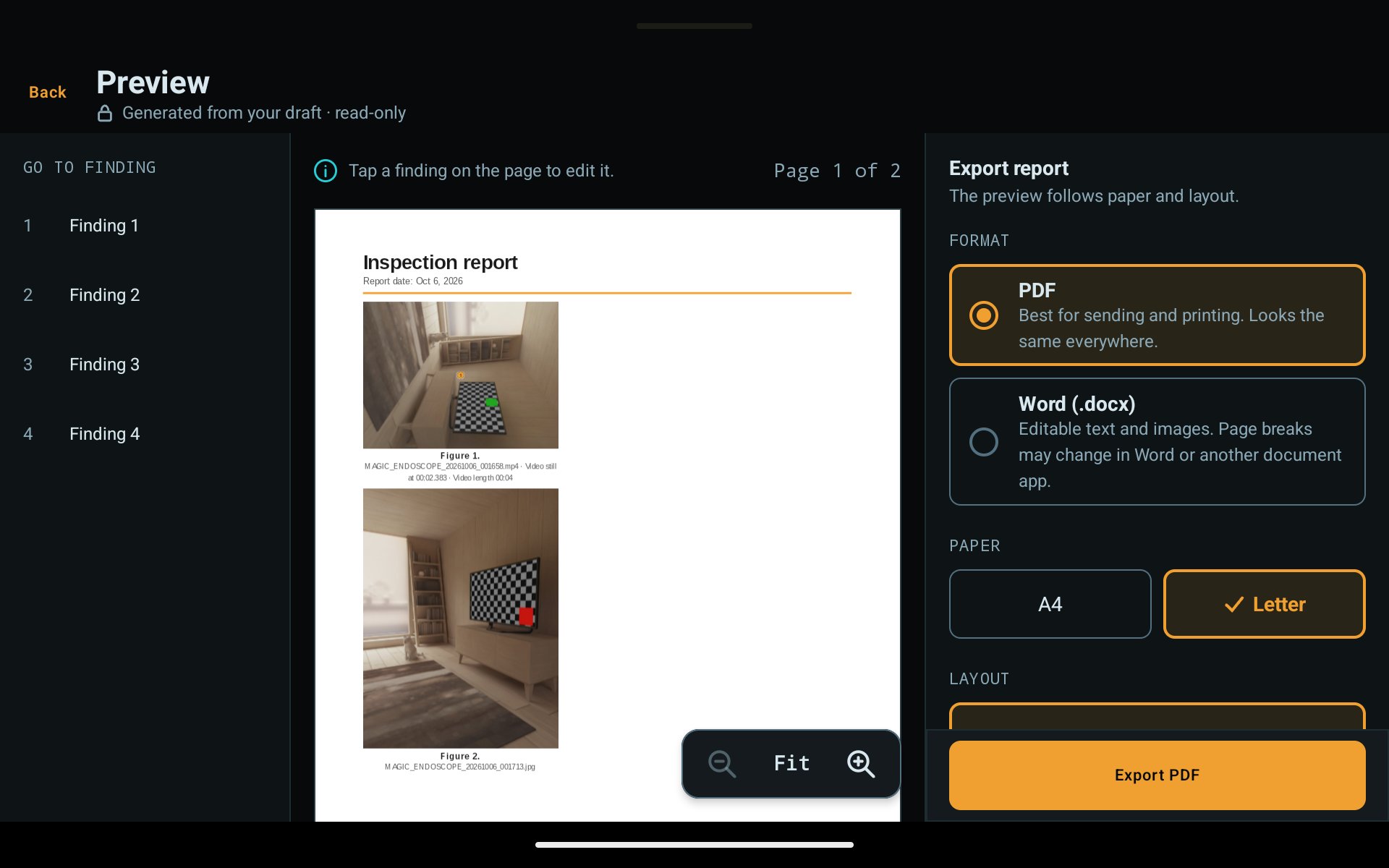
Select, describe, export
- 01
Select
In Inspection Media, press and hold a capture, pick the photos and videos of the job, tap Create report.
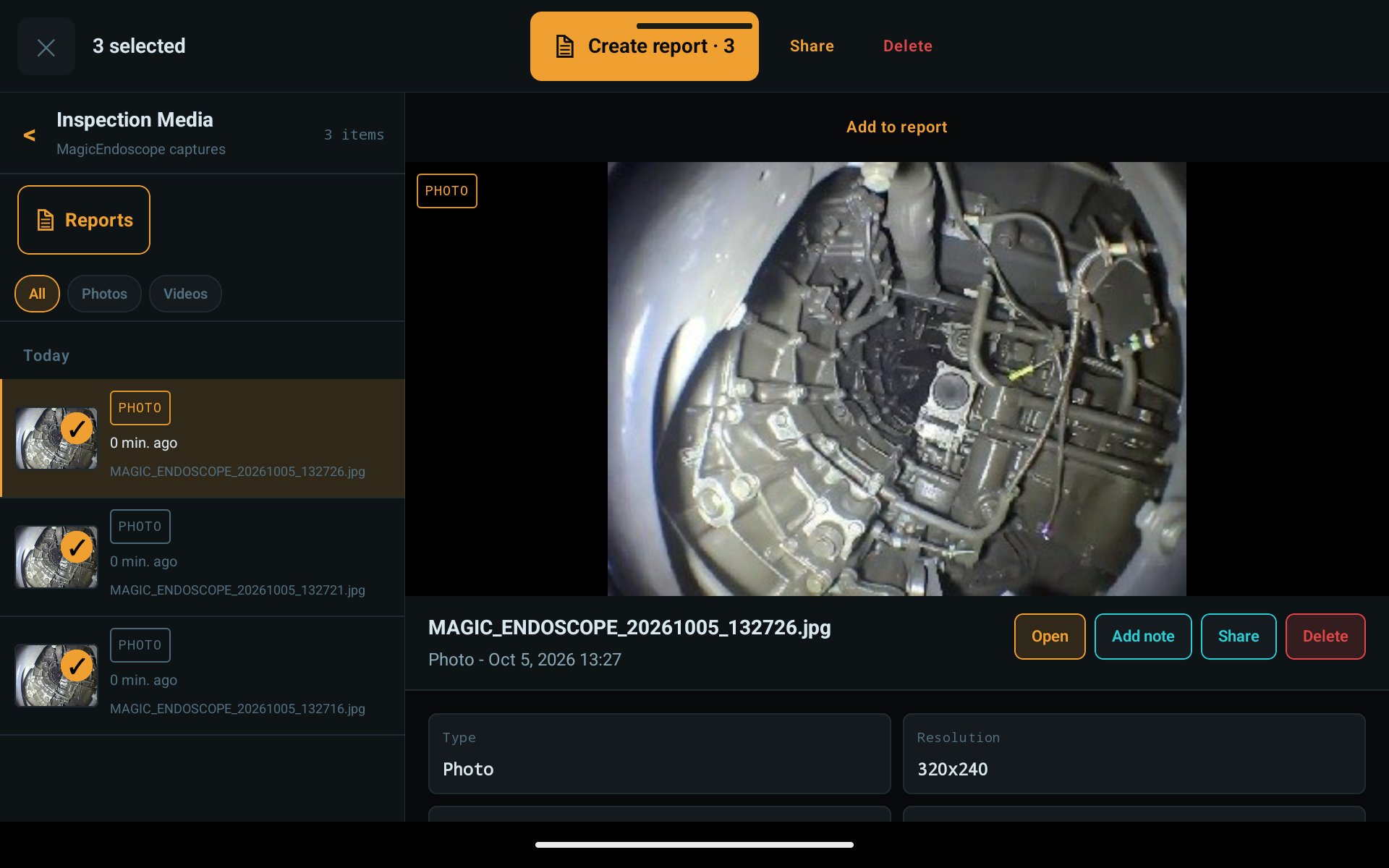
Inspection Media: three captures selected - 02
Describe
One finding per picture: title, observation, next action, priority. Add the customer, the location, who prepared it. Crop, rotate or mark pictures; pick the exact video frame.
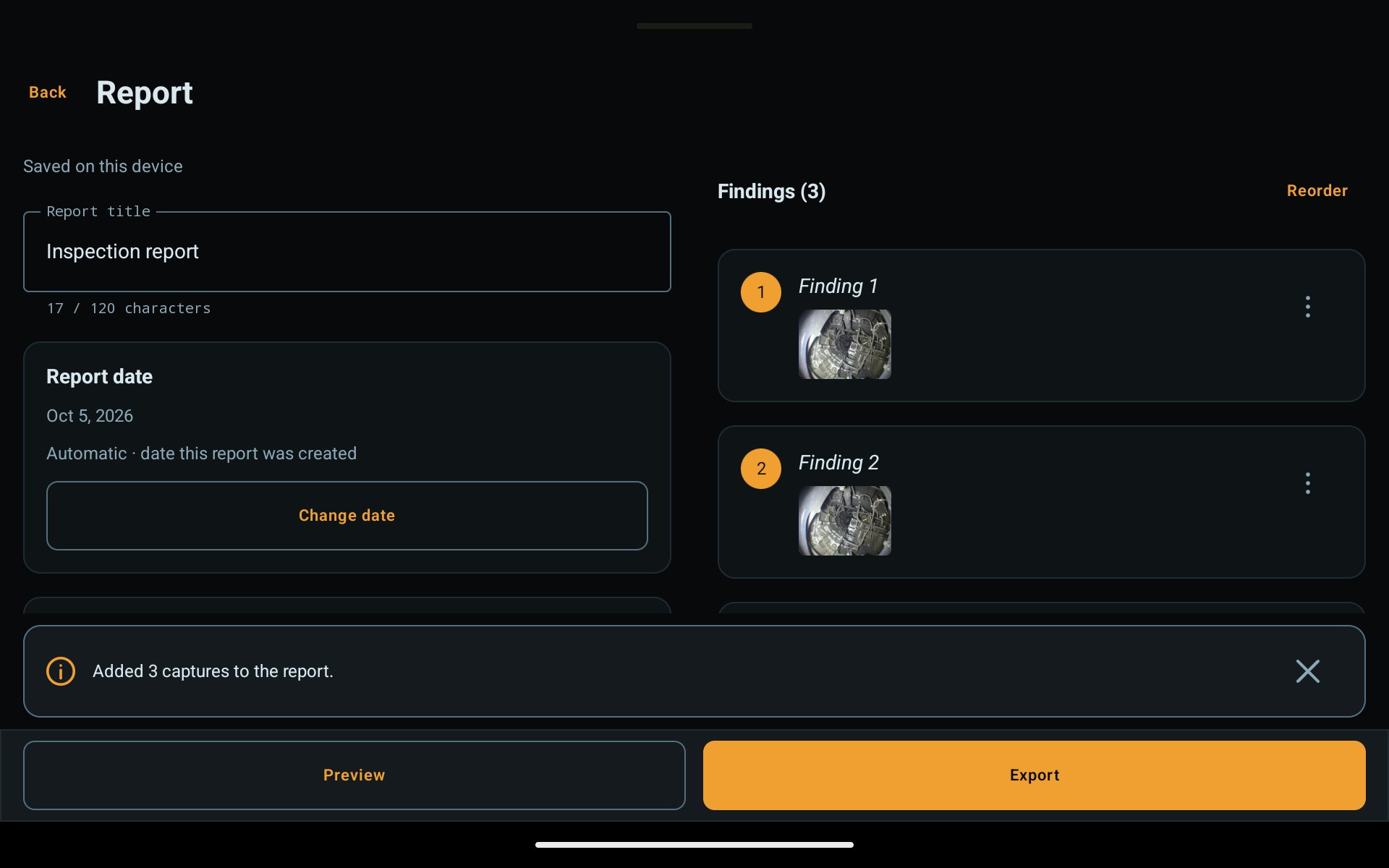
Report editor 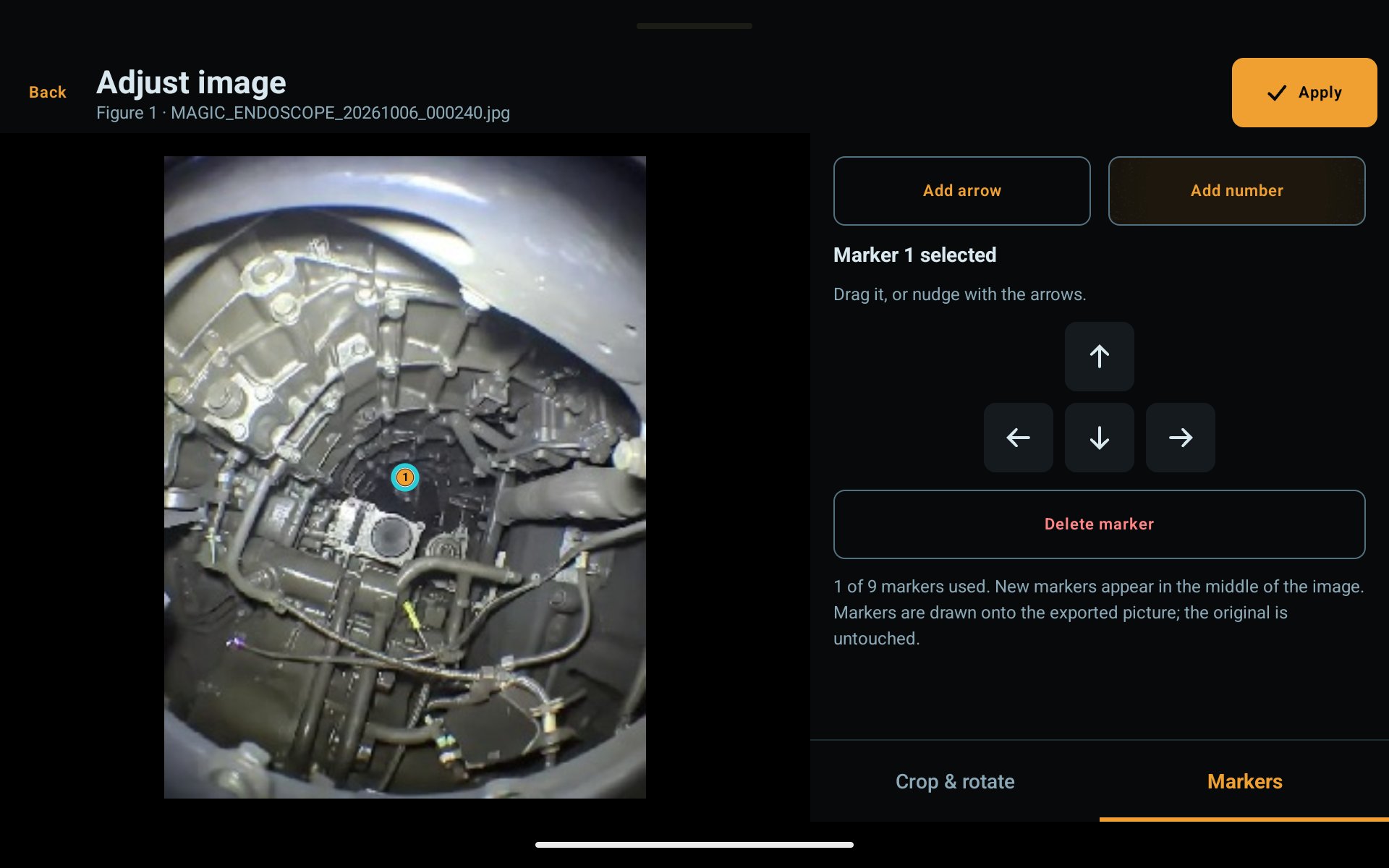
Adjust image: markers 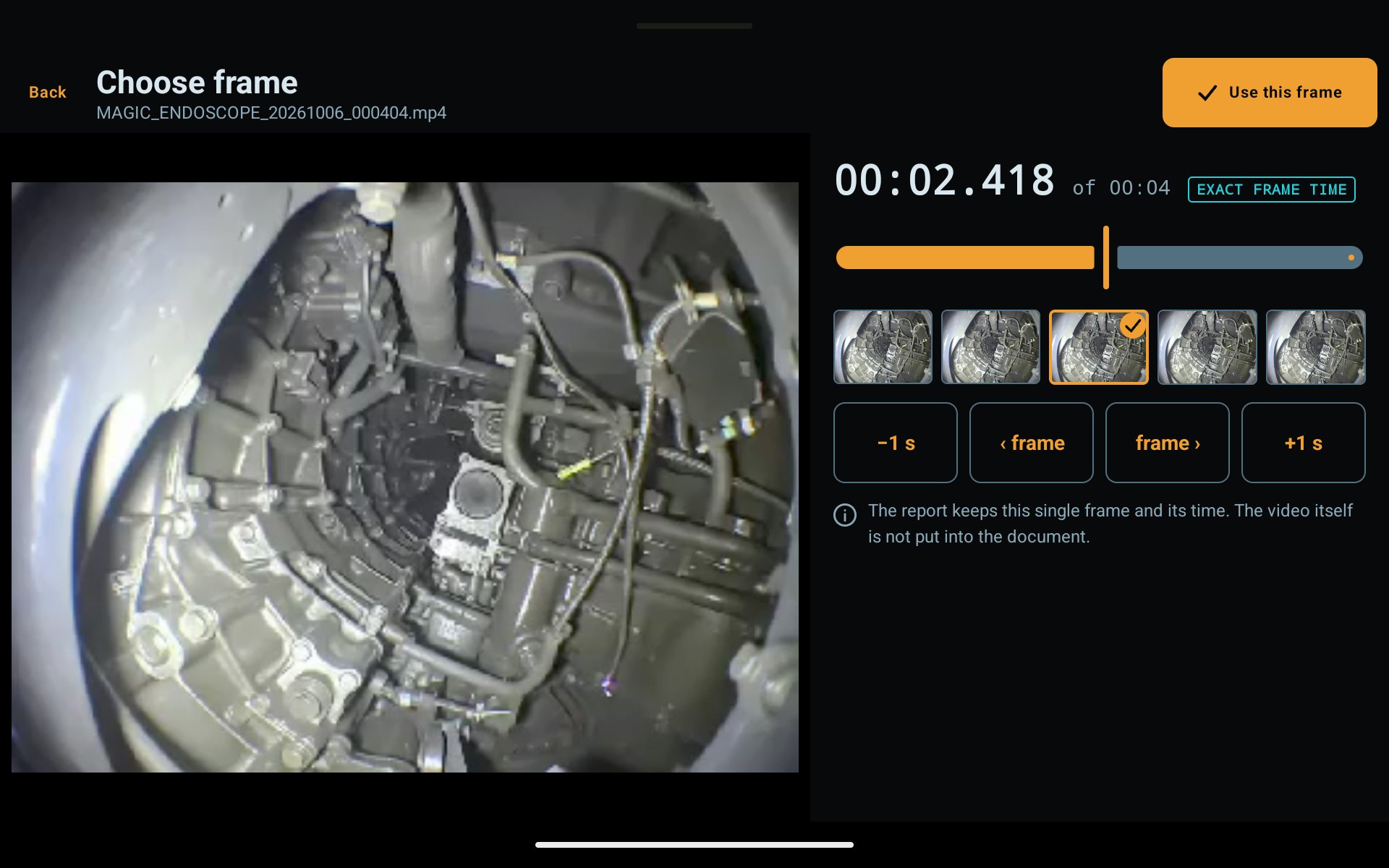
Choose frame - 03
Export
Check every page in the preview. Export PDF or editable Word on A4 or Letter, then share it, save it or open it in another app.
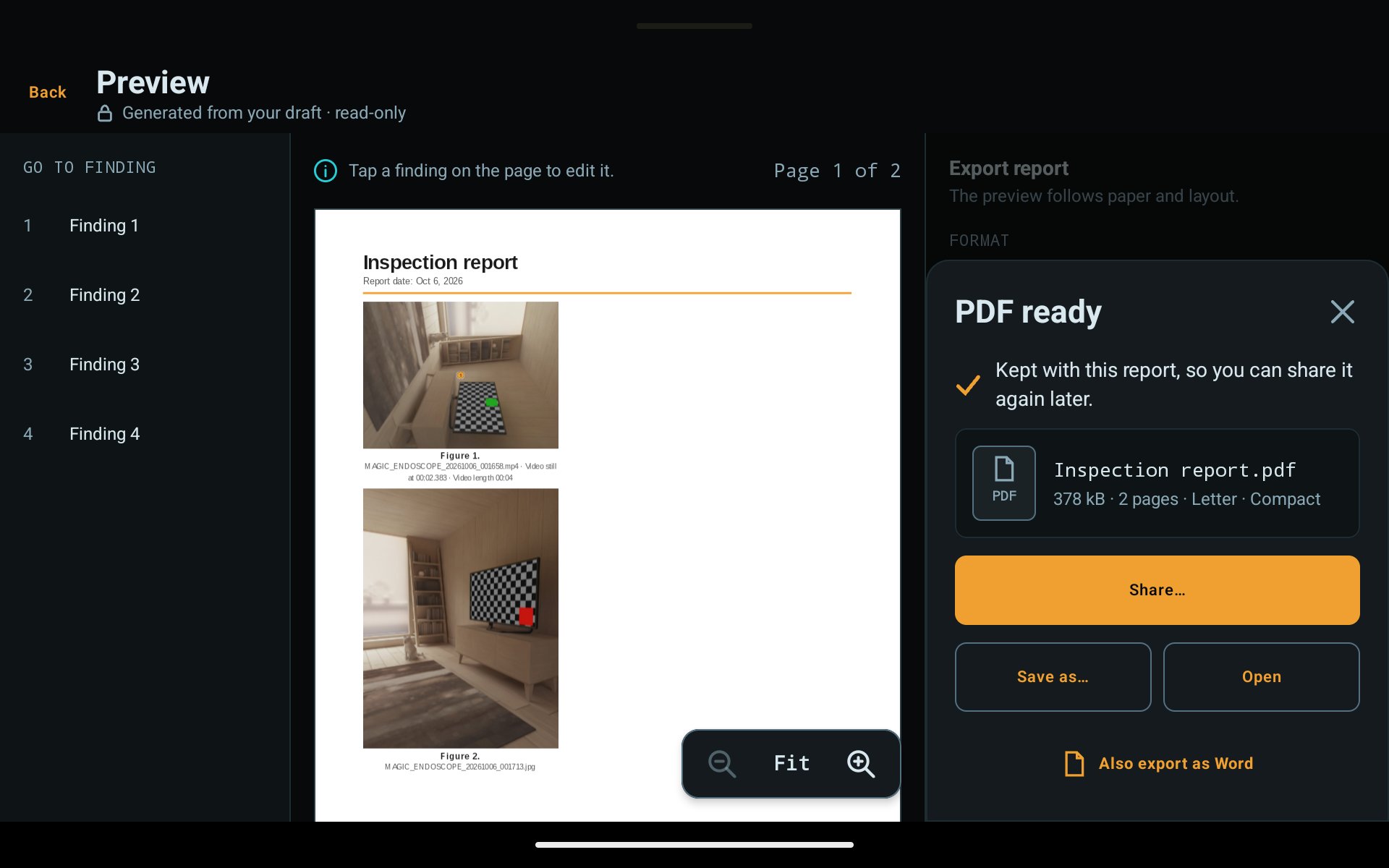
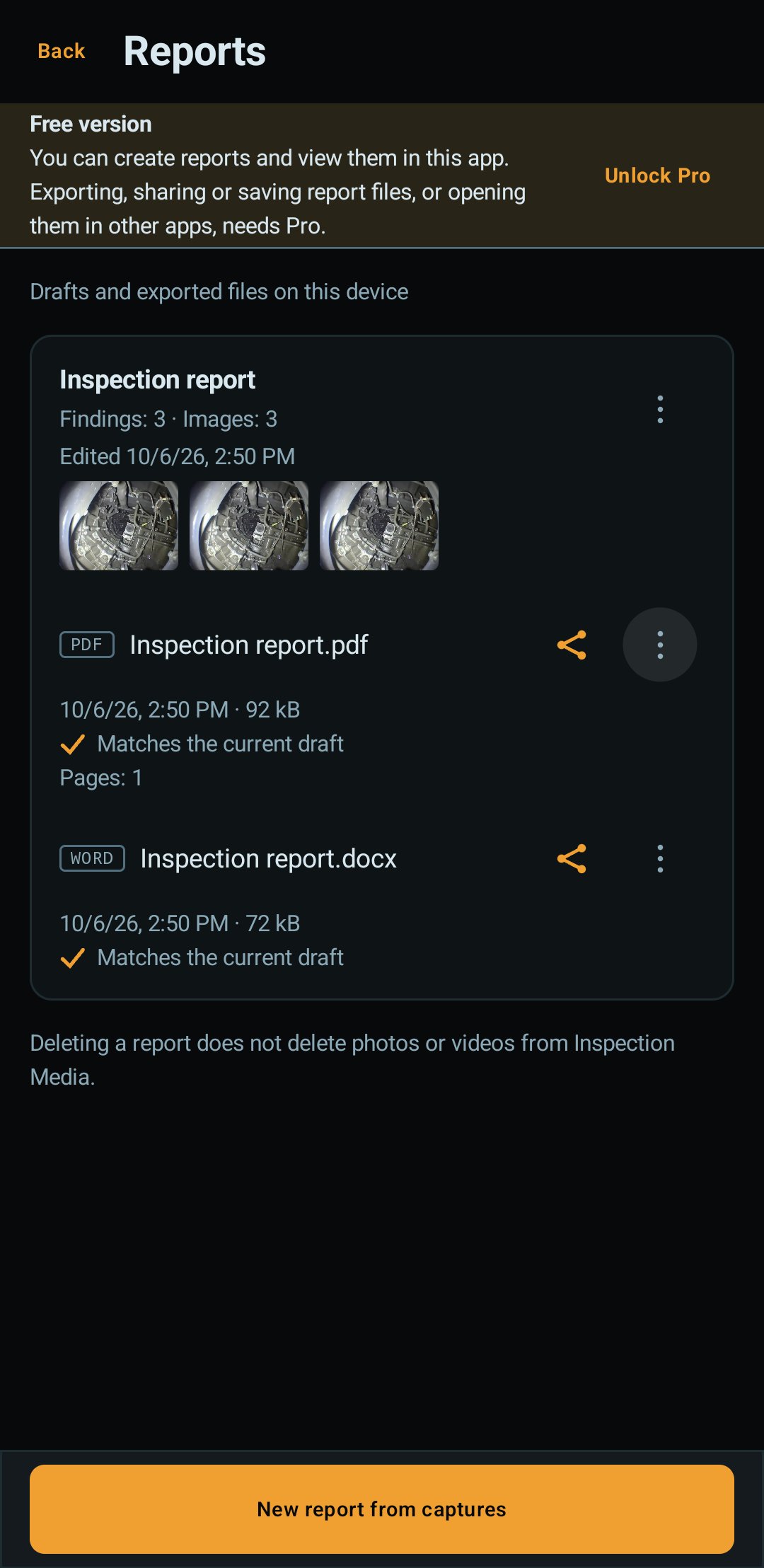
PDF ready: share, save or open
Screenshots on this page show demo pictures, not a real inspection.
What a report contains
- Findings with pictures and captions
- Observation, next action and priority for each finding
- Report details: what was inspected, inspection date, prepared by, location, customer or job, contact, overview
- Compact or Detailed layout, on A4 or Letter paper
- File names under pictures, on or off
- A PDF that looks the same everywhere, or a Word file you can keep editing
- Hidden image data such as GPS removed from exported pictures
What is free, and what Pro adds
Free
Create, edit and preview reports; view report pages, and PDFs exported earlier, inside the app. Pages carry a “Magic Endoscope - FREE version” mark and cannot be screenshotted.
Pro
One-time purchaseExport PDF and Word, share, save, open in other apps; clean pages, no mark.
The first 10 clean captures in Free do not unlock report export.
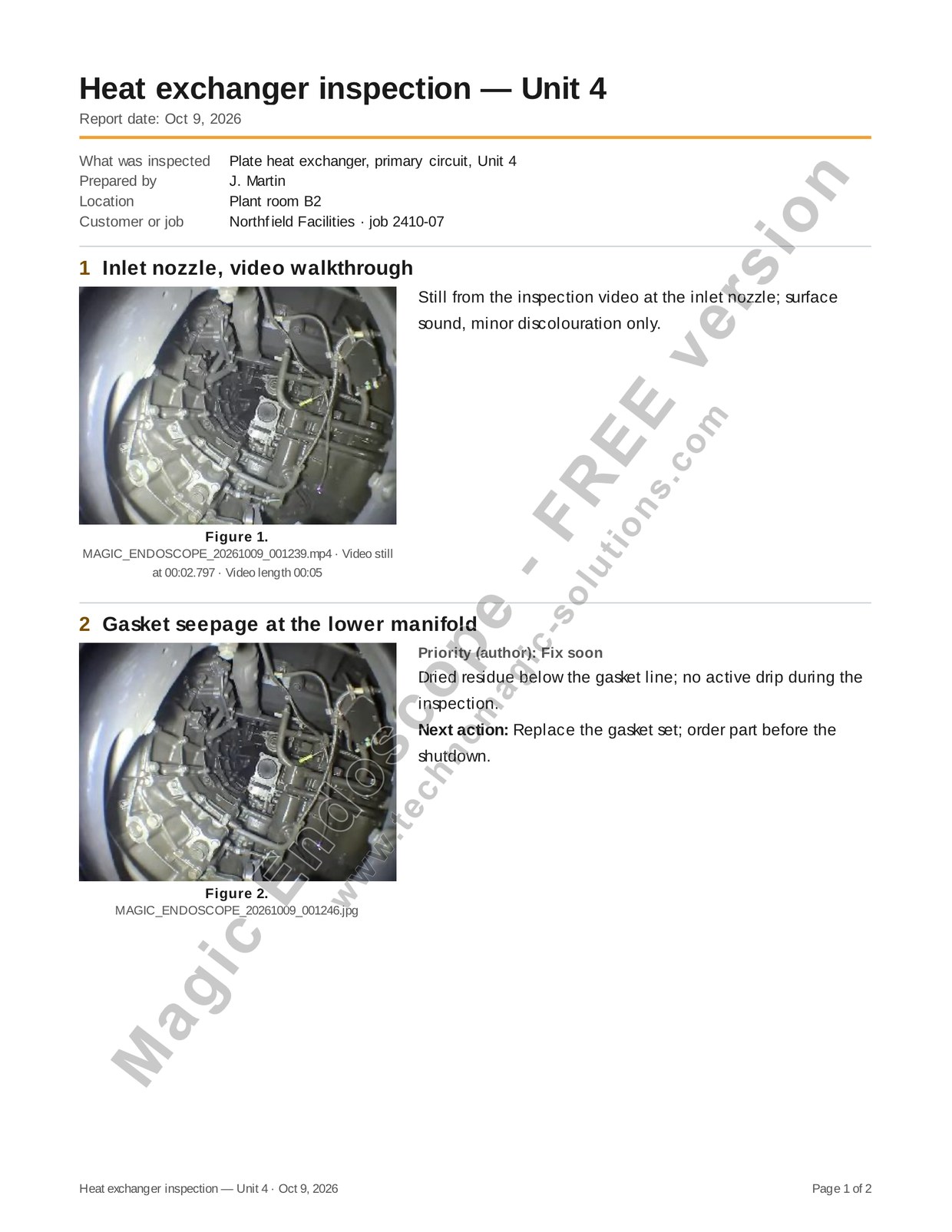
What a Free user sees
Every reporting screen in the Free version shows a banner. It says you can create reports and view them in the app, and that exporting, sharing or saving report files, or opening them in other apps, needs Pro.
Reports stay on your phone
Reports are stored in the app’s private storage on your phone. We run no server for them. Nothing leaves the phone until you share or save a file yourself.
See what an export looks like
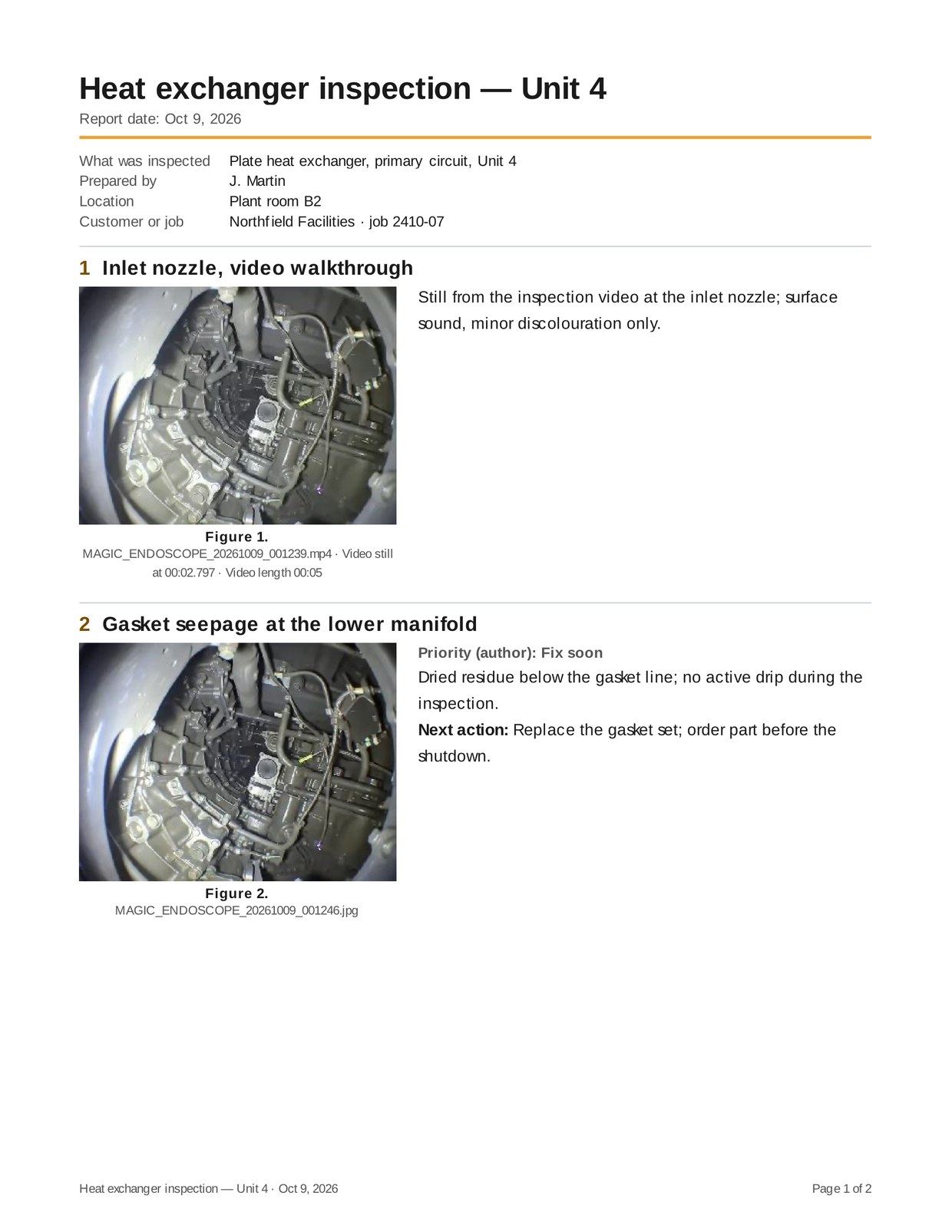
This is a sample report exported by the app from demo pictures, with made-up findings.
Download the sample PDFQuestions
Can I make a report from my captures?
Yes. In Inspection Media, press and hold a capture to start selecting, pick your photos and videos, and tap Create report. You get one finding per picture; add titles, observations, next actions, priorities and job details, then preview the pages. Anyone can create and preview reports. Exporting them as PDF or Word, and sharing or saving the files, is part of Pro.
What does the Free version show on report pages?
A diagonal "Magic Endoscope - FREE version" mark across each page, in the preview and in the in-app viewer, and screenshots of those pages are blocked. Exported files made with Pro never carry the mark.
Do videos have sound?
Only if you turn Sound on. It is off by default; the first time you turn it on, the app asks for microphone access. Sound is stored inside the video on your phone and nowhere else.
Does a report leave my phone?
No. Reports are made and stored on your phone. Only the PDF or Word files you export with Pro leave the app, and only when you share, save or open them yourself.
Can I use the phone's own camera?
Yes, as a third source beside USB and Wi-Fi endoscopes; switch with the camera-source chip on the camera screen.
Install Magic Endoscope — reports are free to create. Unlock Pro once to export them.